VAT Adjustment for Payment Discounts in Microsoft Dynamics NAV / Business Central
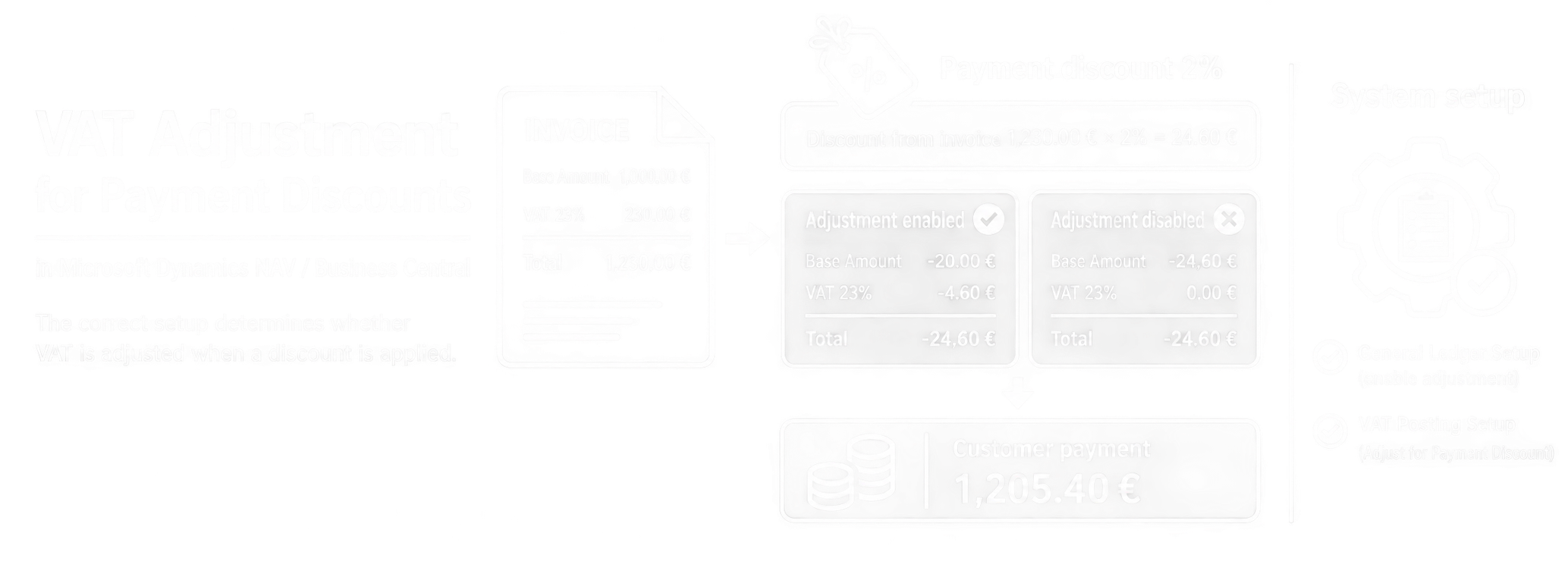
When using payment discounts, it is important to configure correctly how VAT should be handled when the discount is applied.
For this purpose, the system provides the Adjust for Payment Discount setting in the VAT Posting Setup.
This setting determines whether the system should also adjust the VAT amount originally posted on the invoice when a payment discount is applied.
1. What is a payment discount?
A payment discount is a discount granted to a customer or vendor if an invoice is paid within a specified period.
Example:
- Invoice base amount: 1,000.00 EUR
- VAT 23%: 230.00 EUR
- Invoice total: 1,230.00 EUR
- Payment discount: 2%
If the customer meets the payment discount conditions, they will pay:
1,230.00 × 98% = 1,205.40 EUR
The difference represents a payment discount of:
24.60 EUR
2. Where is the VAT adjustment configured?
The setting is available in:
VAT Posting Setup
For the relevant combination of:
- VAT Business Posting Group
- VAT Product Posting Group
the following field is available:
Adjust for Payment Discount
This means that the setting can be configured separately for individual VAT posting group combinations.
For the system to adjust VAT for payment discounts, the corresponding functionality must also be enabled in General Ledger Setup. The functionality is enabled globally and then configured for specific combinations in VAT Posting Setup.
3. Adjust for Payment Discount is enabled
If Adjust for Payment Discount is enabled, the system also adjusts the VAT amount when the payment discount is applied.
Let us use the following example:
| Parameter | Value |
|---|---|
| Invoice base amount | 1,000.00 EUR |
| VAT | 23% |
| VAT on invoice | 230.00 EUR |
| Invoice total | 1,230.00 EUR |
| Payment discount | 2% |
The payment discount amount is:
1,230.00 × 2% = 24.60 EUR
The system splits the payment discount between the VAT base and the VAT amount.
| Item | Original amount | Adjustment | Amount after discount |
| VAT base | 1,000.00 EUR | -20.00 EUR | 980.00 EUR |
| VAT 23% | 230.00 EUR | -4.60 EUR | 225.40 EUR |
| Total | 1,230.00 EUR | -24.60 EUR | 1,205.40 EUR |
After applying the payment discount, the resulting VAT base is:
980.00 EUR
and the resulting VAT amount is:
225.40 EUR
Calculation check:
980.00 × 23% = 225.40 EUR
When the invoice is paid, the system therefore adjusts the originally posted VAT by 4.60 EUR.
4. How is the transaction posted?
When the invoice is issued, the following amounts are initially posted:
| Account | Amount |
| Customer receivable | 1,230.00 EUR |
| Revenue | 1,000.00 EUR |
| VAT | 230.00 EUR |
If the customer pays the invoice within the payment discount period, they pay:
1,205.40 EUR
The difference of 24.60 EUR represents the payment discount.
If VAT adjustment is enabled, this difference is split into:
- 20.00 EUR – payment discount related to the VAT base
- 4.60 EUR – VAT adjustment
The resulting VAT amount for the transaction is therefore reduced from:
230.00 EUR
to:
225.40 EUR
The system performs this adjustment when the invoice is applied against the payment, provided that the payment discount conditions are met.
5. What happens if Adjust for Payment Discount is disabled?
If Adjust for Payment Discount is disabled, the system does not adjust VAT when the payment discount is applied.
Using the same example, the customer still pays:
1,205.40 EUR
but the original VAT amount remains:
230.00 EUR
The system therefore does not create a VAT adjustment of 4.60 EUR.
The difference between the original invoice amount and the payment received is posted as a payment discount according to the configured posting accounts.
6. Comparison of both options
| Setting | Adjustment enabled | Adjustment disabled |
| Original invoice | 1,230.00 EUR | 1,230.00 EUR |
| Customer payment | 1,205.40 EUR | 1,205.40 EUR |
| Payment discount | 24.60 EUR | 24.60 EUR |
| Original VAT | 230.00 EUR | 230.00 EUR |
| VAT adjustment | -4.60 EUR | 0.00 EUR |
| Final VAT | 225.40 EUR | 230.00 EUR |
The difference is therefore not in the amount paid by the customer, but in whether part of the payment discount is also reflected in VAT.
7. Important configuration
It is not sufficient to check only the Adjust for Payment Discount field on a specific line in VAT Posting Setup.
The functionality must also be enabled in General Ledger Setup.
You can then define which VAT posting group combinations should use this adjustment.
If a company uses several VAT rates, the setting should therefore be checked separately for each relevant posting group combination.
8. When does the system perform the VAT adjustment?
The setting itself does not mean that VAT will be adjusted on every invoice.
The VAT adjustment is performed when:
- the invoice uses payment terms that include a payment discount,
- the customer or vendor meets the conditions for receiving the discount,
- the payment is applied to the relevant invoice,
- payment discount VAT adjustment is enabled,
- the relevant VAT posting group combination has Adjust for Payment Discount enabled.
The VAT adjustment is therefore created only when the payment discount is actually applied during invoice settlement.
Summary
The Adjust for Payment Discount field determines whether the VAT amount originally posted on an invoice should also be adjusted when a payment discount is applied.
If the setting is enabled, the part of the payment discount attributable to VAT is posted as a VAT adjustment.
For an invoice of 1,230.00 EUR including 23% VAT and a 2% payment discount, the original VAT amount of 230.00 EUR is reduced to 225.40 EUR after the discount is applied.
If the setting is disabled, the VAT amount remains at the original 230.00 EUR.
The behavior described in this article is based on standard Microsoft Dynamics NAV / Business Central functionality. A specific implementation may include custom modifications, extensions, or changes introduced by the implementation partner. For this reason, we recommend verifying the behavior in the specific database before changing the setting and testing the change in a test environment first.